Sunday, September 25, 2011

How do I display open tasks?

Shortcuts are faster: Only display active tasks in your project schedule by filtering for incomplete tasks
Philosophy
One of my pet peeves is, during weekly Webex status calls, a Program/Project Manager (PM) displays his project schedule and he continues to display all the closed or completed tasks i.e., tasks that are 100% complete. While this may not sound significant, remember that one of the tasks of a PM is information management. And information management is the art of delivering (or displaying) only the key information that stakeholders need to see. I certainly don't like having to visually wade through tasks that are no longer relevant to the project. PMs should only display open or incomplete tasks (i.e., tasks that are less than 100% complete).

Or if you need the research of why less info is more to be convinced of the benefits of keeping things simple (kinda like Apple products), check out this book "Made to Stick." This books explains beautifully why some ideas stick to people's minds and others do not. One of the six core elements of making ideas (or in our case, schedule info) sticky, is to keep it simple. Yes, KISS!

Steps

The screenshot above shows how MS Project makes it really easy to display only open (incomplete) tasks. There are two ways:
  1. Point & click: Project > Filtered for: Incomplete Tasks > Incomplete Tasks
  2. Shortcuts: [ALT] + P + F + N

How I display open tasks 
My favorite way, because it's the quickest, is to use the shortcuts. When I'm walking through the schedule with my project team, I typically have the tasks already filtered to display only open tasks. But every now and then, I've had to display all tasks (open & closed). Because I've practiced it so much, my fingers automatically hit [ALT] + P + F + A (to display all tasks). And once I'm done showing my team the closed task they had asked about, I automatically hit [ALT] + P + F + N (to filter on only open tasks).

Or when I've closed out a task by marking it at 100% complete, my fingers automatically hit the shortcut to hide the closed task. A closed task should be hidden the moment it's been marked as closed. Out of sight, out of mind, right?

Try practicing both these shortcuts for a few days to make it come automatically to your fingers.

How do I automatically show active tasks?

Active tasks: Use light-bulb icons to indicate which tasks have started


In my weekly project calls with stakeholders, I use light bulb icons to identify which tasks to discuss, update with status info, etc. 

Because my project schedules typically have a few hundred line items, I really don't want to be reading each line in the schedule to see which task is active. Believe it or not, other project managers actually read start dates for each task (out of hundreds of tasks) to see which tasks to ask for status or discuss!

My philosophy is simple: look but don't read. So I stuck in a simple formula for MS Project to use to automatically display light bulb icons for active tasks (start date >= today's date).

Time needed: <3 min
  1. Insert a column (preferably to the left of the "Task Name" colum)
    • e.g., right-click on Task Name column > Insert Column > Field name: Text 1
    • Title: Start
    • Align data: Center
    • Ok
  2.  Add a formula to determine whether a task will finish on time, finish semi-late or finish really late
    • e.g., Right-click on "Start" column > Customize fields > Highlight Text1
    • Select formula > Ok > Formula
    • Paste this formula in box: IIf([% Complete]<>100,IIf([Current Date]>[Start]-1,1,0))
    • Ok
  3. Add graphical indicators to the formula
    • Click on Graphical Indicators button
    • Indicator criteria for: Nonsummary rows
    • Test for "Finish on Time?"
      • equals    1.00   [Select image of lighted light bulb]
    • Ok > Ok

Friday, September 23, 2011

Keep Tasks Green

A green schedule: Make sure that all tasks in your schedule are green


Philosophy of green schedules
As part of my weekly status calls with project stakeholders, I review two types of tasks:
  • Open tasks: light-bulbs indicate whether someone should be working on the task (see light-bulb blog-post)
  • Late tasks: red & yellow tasks are tasks that have missed or will miss their finish dates (see traffic light blog post)
Every status call invariably has a few tasks with yellow or red traffic lights. Some tasks show up late even though they completed on time.

Remove red & yellow lights: Change the finish dates to get green tasks and thus see if major milestones will still finish on time

This normally happens if I, as the PM, was not on the email chain mentioning the task had been completed. In which case, I close the task once notified. And the late indicator disappears.

But there are frequently tasks where the task owner says that the task requires more time or he hasn't started working on it. In which case, I ask for the new ETA and update the finish date. At which point the late indicator should  turn green.

Benefit of green schedules
Setting new finish dates, as opposed to leaving finish dates unchanged, helps show how finish dates for downstream tasks are changed. And as a result, whether major milestones are impacted. If red diamonds (late indicators for milestones) appear as a result of a task owner's new finish date, the whole team on the call sees the impact. And then it's trivial to negotiate for an earlier ETA.

Of course, you see this benefit only if you've correctly defined your predecessors & successors. But that's a topic for another blog post.

Sunday, September 18, 2011

How do I Automatically Show Late Tasks?

Late indicators: Balls change color automatically depending on whether task will finish on time
Follow the three steps below to get  late task indicators such as shown in the screenshot. Colored balls indicate whether a task will finish really late, semi-late or is on track for finishing on time. 
Time needed: <3 min
  1. Insert a column (preferably to the left of the "Task Name" colum)
    • e.g., right-click on Task Name column > Insert Column > Field name: Text 1
    • Title: Finish on Time?
    • Align data: Center
    • Ok
  2.  Add a formula to determine whether a task will finish on time, finish semi-late or finish really late
    • e.g., Right-click on "Finish on Time?" column > Customize fields > Highlight Text1
    • Select formula > Ok > Formula
    • Paste this formula in box: IIf([% Complete]<>100,DateDiff("d",[Finish],[Current Date]))
    • Ok
  3. Add graphical indicators to the formula
    • Click on Graphical Indicators button
    • Indicator criteria for: Nonsummary rows
    • Test for "Finish on Time?"
      • is less than    1.00  [Select image of green ball]
      • is less than    3.00  [Select image of yellow ball]
      • is greater than or equal to   3.00  [Select image of red ball]
    • Ok > Ok
That's it! You're done. Now MS Project will automatically display which tasks will finish on time, will be semi-late, or really late. Key rules to keep in mind:
  • NO BALL: Task has completed. Only incomplete tasks (< 100%) will have colored icons indicating whether it's late or not. Summary tasks (complete or incomplete) also will NOT have any colored icons
  • GREEN BALL: Task has a chance of finishing within 1 day of the planned finish date
  • YELLOW BALL: This semi-late task is missing planned finished date by 1-3 days  
  • RED BALL: This really late task has missed planned finished date by more than 3 days
  • To change the criteria for the tasks that will finish late or really late, just change the # of days (currently set to 3 days) to the # of days you prefer

Sunday, August 28, 2011

Automatically Color-code Milestones

Fig 1: MS Project will automatically format tasks such as milestones if the text style is defined
Philosophy of color-coding milestones
My basic philosophy with the schedule is to keep it simple: look but don't read. Which means that the 5-7 milestones (see blog post on Too Many Milestones) should visually stand out. I shouldn't have to look for 0-day duration tasks to identify when I'm looking at a milestone.

MS Project provides a nifty way of automatically formatting tasks (milestones, critical tasks, etc).

Steps to auto-format milestone tasks
  1. Format > Text Styles (see fig. 1)
  2. Items to Change: Milestone Tasks (see fig. 2)
  3. Select the text color and background (I normally choose a lime green background that's bold)
Fig. 2: Select the task that you want formatted

Sunday, August 21, 2011

How do I align text in columns?

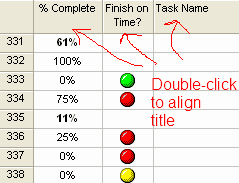
Change titles: Unhappy with the alignment or labels for the titles? Just double-click the titles to edit them

If you're interested in changing the column for the graphical indicators after it's been created - change alignment or change column heading - just double-click the column header and you'll have five properties of the column that you can change:
  • Field name: Text1
  • Title: Finish on Time?
  • Align Title: Center
  • Align data: Center
  • Width
  • Header Text Wrapping

Monday, August 15, 2011

Why Show Late Tasks using Graphical Indicators?

  • Key Point: Save time by using MS Project to automatically mark tasks that have failed to complete on time
On large projects that I've managed (200+ line items), it's always been a pain and a time-waster to actually read the "Finish By" dates to see if any particular task is late. I've seen some PMs who would, before their weekly status call with stakeholders, manually read through 100+ line items and manually highlight late tasks in red! And then on their status call, would ask the respective owners to provide new ETAs so the tasks would be on track.
But there's a better way of showing late tasks.
Automatically indicating which tasks are late in finishing is easy to implement: five minutes at the most. Moreover, as shown in the screenshot, MS Project has some nice visual indicators that you can use to indicate four states:
  1. NO BALL: Task has completed
  2. GREEN BALL: Task still has a chance of finishing on schedule
  3. RED BALL: This really late task has missed planned finished date by more than a few days
  4. YELLOW BALL: This semi-late task is missing planned finished date by 1-3 days
As you can see, it's easy for the eyes to focus on all the really late tasks (RED BALL) and semi-late tasks (YELLOW BALL). And in future posts, I'll show how you can filter on really late or semi-late tasks: management will like this filtered view since they're only in interested in focusing on problem tasks (late & semi-late tasks).